布局(Layout)
描述
布局在应用程序设计中至关重要,因为它决定了内容的呈现方式及其视觉效果。
FlexLayout
FlexLayout 类是一种一维布局,用于在子项之间分配空间,并提供多种对齐功能。
示例:
const desktop = Desktop.instance();
const layout = new FlexLayout(desktop);
layout.css = { border: "1px solid #444", padding: '6px' };
layout.spacing = 6;

const button1 = new Button(layout, 'Button 1');
button1.height = 60;
const button2 = new Button(layout, 'Button 2');
button2.height = 40;
new Button(layout, 'Button 3');
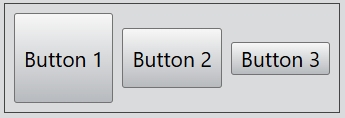
的对齐方式可以通过 alignment 属性设置。对于水平布局,可以设置为 Top(顶部)、Bottom(底部)和 Center(居中)。默认值为 Center。
...
layout.alignment = Alignment.Top;
...
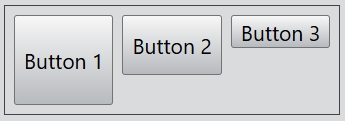
...
layout.alignment = Alignment.Bottom;
...
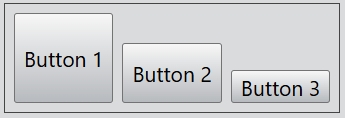
垂直布局示例:
const desktop = Desktop.instance();
const layout = new FlexLayout(desktop, Orientation.Vertical);
layout.css = { border: "1px solid #444", padding: '6px' };
layout.spacing = 6;

const button1 = new Button(layout, 'Button 1');
button1.width = 150;
const button2 = new Button(layout, 'Button 2');
button2.width = 120;
new Button(layout, 'Button 3');
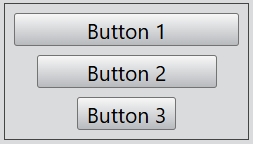
对于垂直布局,可以设置对齐方式为 Left(左对齐)、Right(右对齐)和 Center(居中)。默认值为 Center。
...
layout.alignment = Alignment.Left;
...
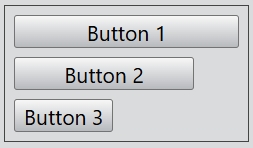
...
layout.alignment = Alignment.Right;
...
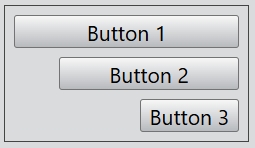
BoxLayout
BoxLayout 类用于水平或垂直排列子控件,布局会自动填充桌面或对话框。可以通过 add() 和 insert() 函数添加控件,使用 remove() 移除控件,使用 clear() 移除所有控件。
示例:
const dialog = new Dialog();
dialog.size = new Size(500, 300);

const mainLayout = new HBoxLayout(dialog);
const hLayout = new HBoxLayout(mainLayout);
new Button(hLayout, 'Button 1');
new Button(hLayout, 'Button 2');

const vLayout = new VBoxLayout(mainLayout);
new Button(vLayout, 'Button 3');
new Button(vLayout, 'Button 4');
new Button(vLayout, 'Button 5');
new Button(vLayout, 'Button 6');
new Button(vLayout, 'Button 7');

dialog.exec();
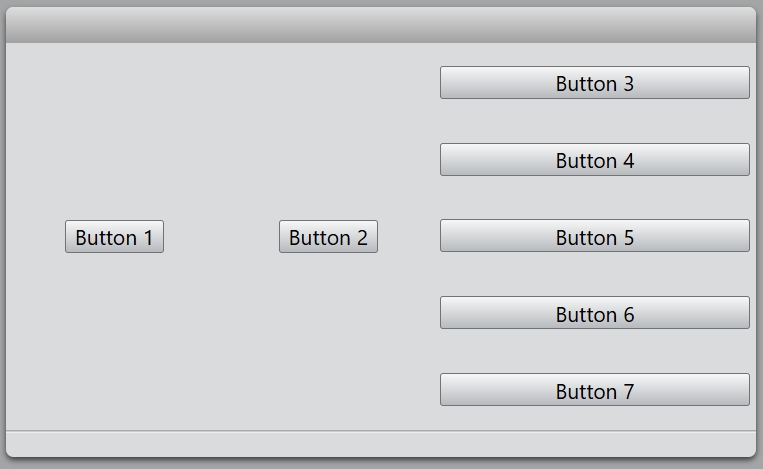
addSpacer() 函数可以在布局中添加空白间隔:
...
new Button(vLayout, 'Button 3');
new Button(vLayout, 'Button 4');
vLayout.addSpacer();
new Button(vLayout, 'Button 5');
new Button(vLayout, 'Button 6');
new Button(vLayout, 'Button 7');
...
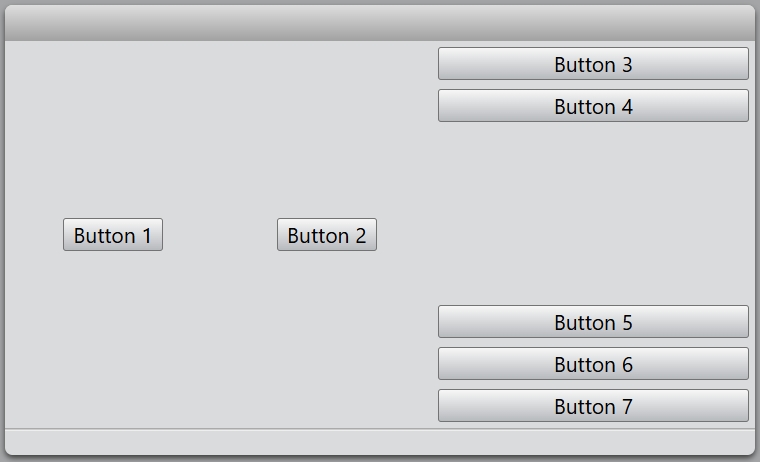
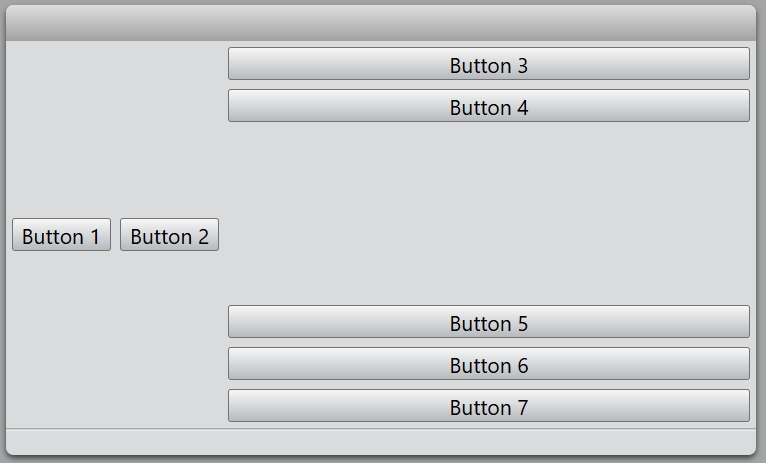
可以通过 setStretch() 设置控件的伸缩因子:
...
mainLayout.setStretch(hLayout, 0);
mainLayout.setStretch(vLayout, 1);
...
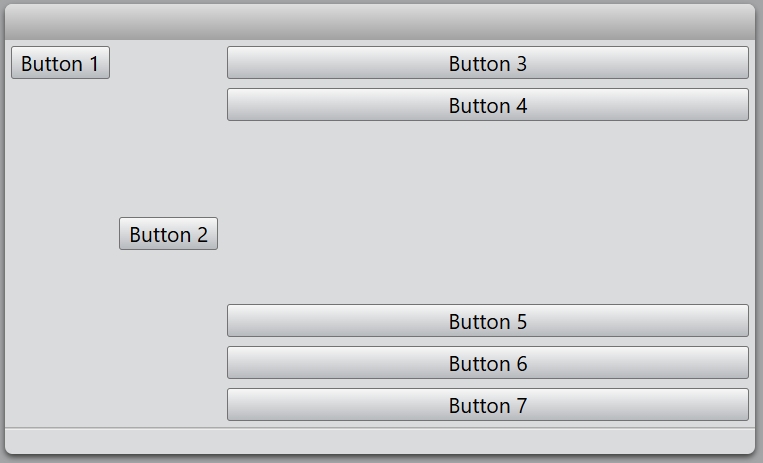
更改指定控件的对齐方式:
...
const hLayout = new HBoxLayout(mainLayout);
const button = new Button(hLayout, 'Button 1');
hLayout.setAlignment(button, Alignment.Top);
...
FormLayout
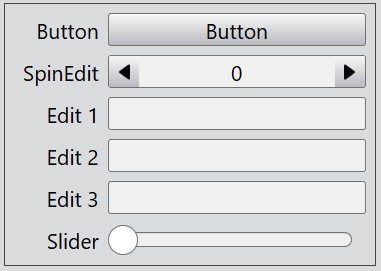
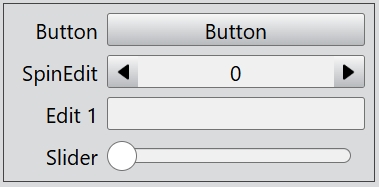
FormLayout类提供了一种两列布局,文本标签位于左侧,对应的控件位于右侧。可以通过 addItem()或 insertItem() 添加项目,使用 clear() 清空布局,使用 removeItem() 移除单个项目。
示例:
const desktop = Desktop.instance();
const formLayout = new FormLayout(desktop);
formLayout.css = { border: "1px solid #444", padding: '6px' };

formLayout.addItem('Button', new Button(undefined, 'Button'));
formLayout.addItem('SpinEdit', new SpinEdit());
formLayout.addItem('Edit 1', new Edit());
formLayout.addItem('Edit 2', new Edit());
formLayout.addItem('Edit 3', new Edit());
formLayout.addItem('Slider', new Slider());
可以通过 setItemVisible() 隐藏指定的项目:
...
formLayout.setItemVisible('Edit 2', false);
formLayout.setItemVisible('Edit 3', false);
GridLayout
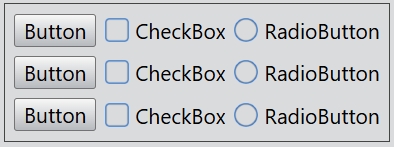
GridLayout 类以网格形式布局控件。网格布局的行数和列数可以通过 rowCount 和 columnCount 属性设置。可以使用 addColumn() 或 insertColumn() 添加新列,使用 addRow() 或 insertRow() 添加新行,通过 set() 方法将控件添加到指定的网格单元格中。
示例:
const desktop = Desktop.instance();
const gridLayout = new GridLayout(desktop);
gridLayout.css = { border: "1px solid #444", padding: '6px' };
gridLayout.rowCount = 3;
gridLayout.columnCount = 3;
gridLayout.horizontalSpacing = 6;
gridLayout.verticalSpacing = 6;

gridLayout.set(0, 0, new Button(undefined, 'Button'));
gridLayout.set(0, 1, new CheckBox(undefined, 'CheckBox'));
gridLayout.set(0, 2, new RadioButton(undefined, 'RadioButton'));

gridLayout.set(1, 0, new Button(undefined, 'Button'));
gridLayout.set(1, 1, new CheckBox(undefined, 'CheckBox'));
gridLayout.set(1, 2, new RadioButton(undefined, 'RadioButton'));

gridLayout.set(2, 0, new Button(undefined, 'Button'));
gridLayout.set(2, 1, new CheckBox(undefined, 'CheckBox'));
gridLayout.set(2, 2, new RadioButton(undefined, 'RadioButton'));
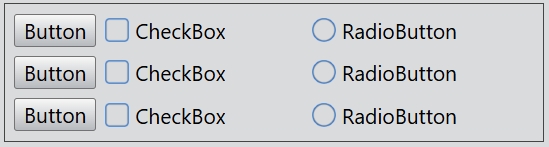
可以通过 setColumnWidth() 设置指定列的宽度:
...
gridLayout.setColumnWidth(2, 200);
可以通过 setRowVisible() 和 setColumnVisible() 隐藏指定的行或列。
...
gridLayout.setRowVisible(1, false);
gridLayout.setColumnVisible(1, false);